
webOS IPTV Player
An IPTV player for LG webOS TVs. Supports M3U playlists, Xtream Codes accounts, XMLTV program guides, and catch-up/timeshift playback.
English | 简体中文




Screenshots
| Channel list | Live preview |
|---|---|
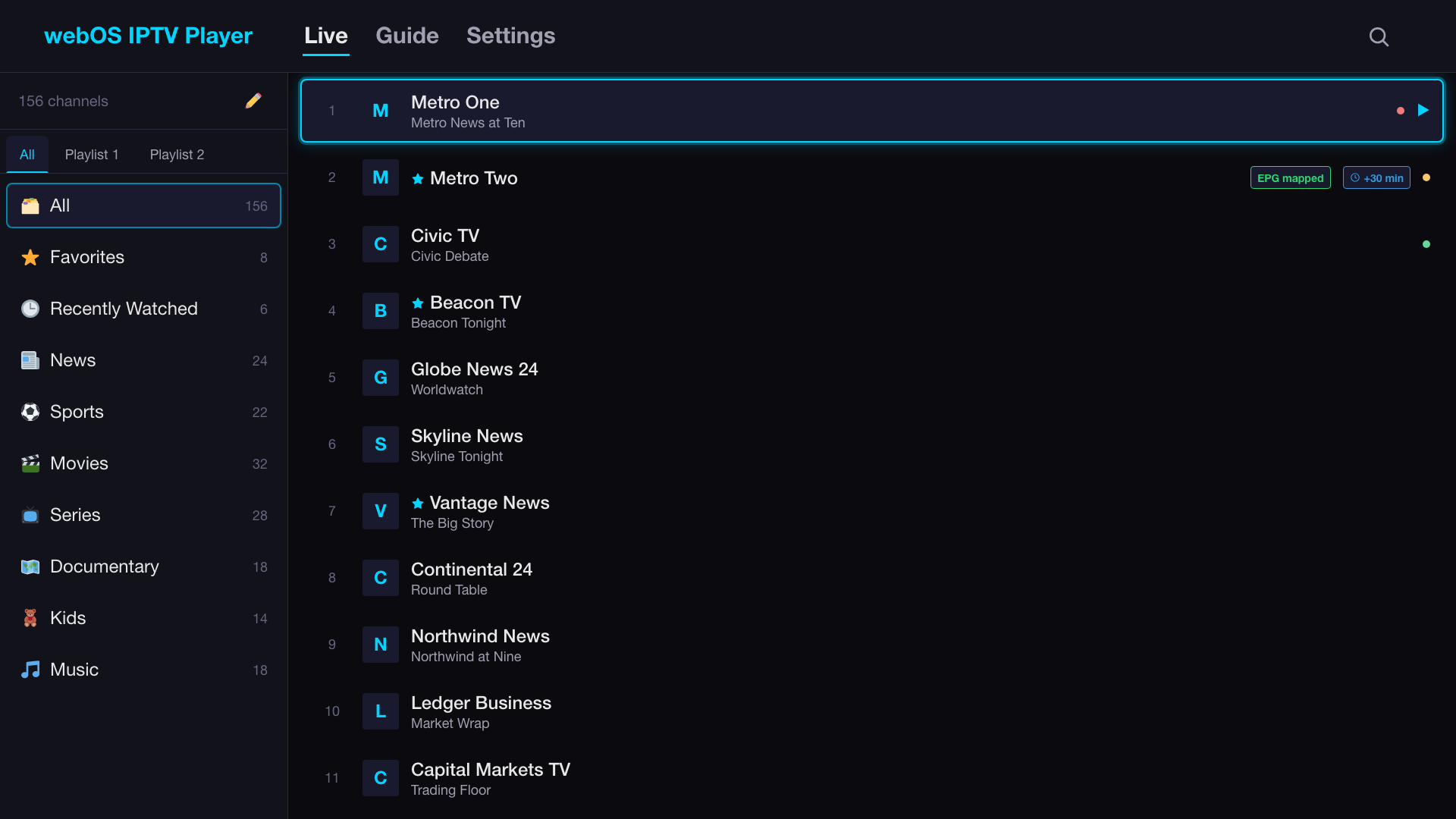 |
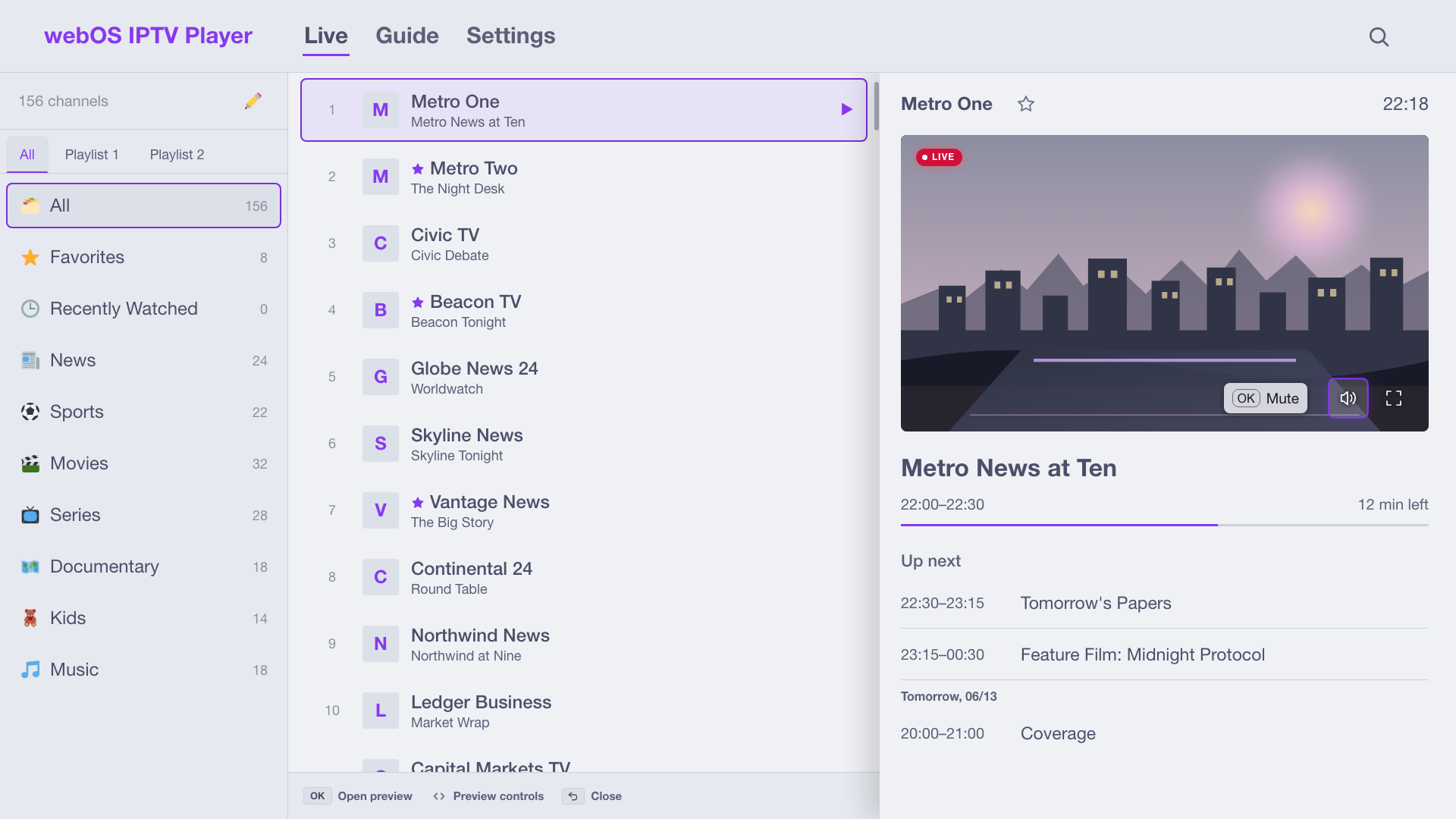 |
| Recently watched | Program guide |
|---|---|
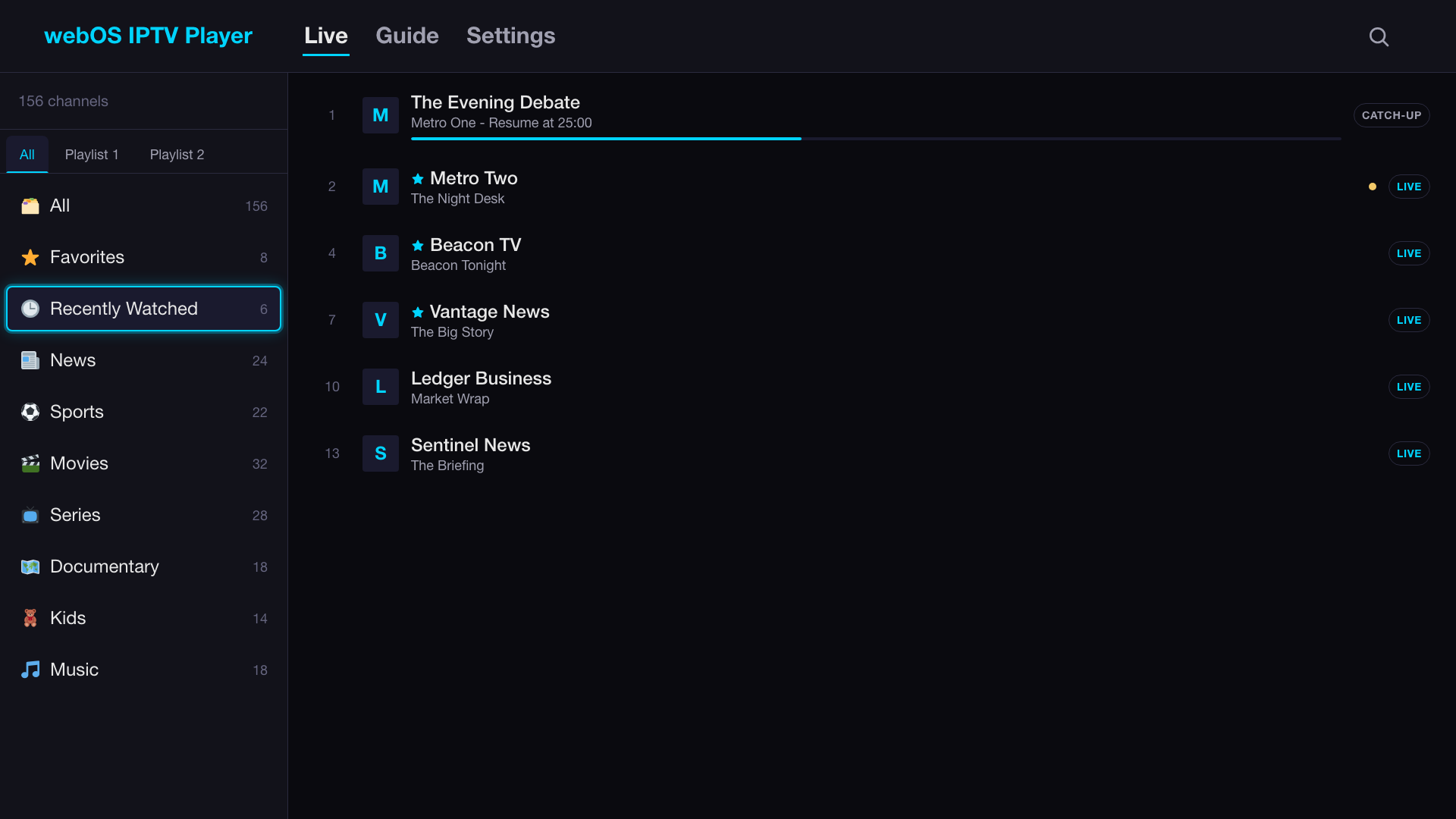 |
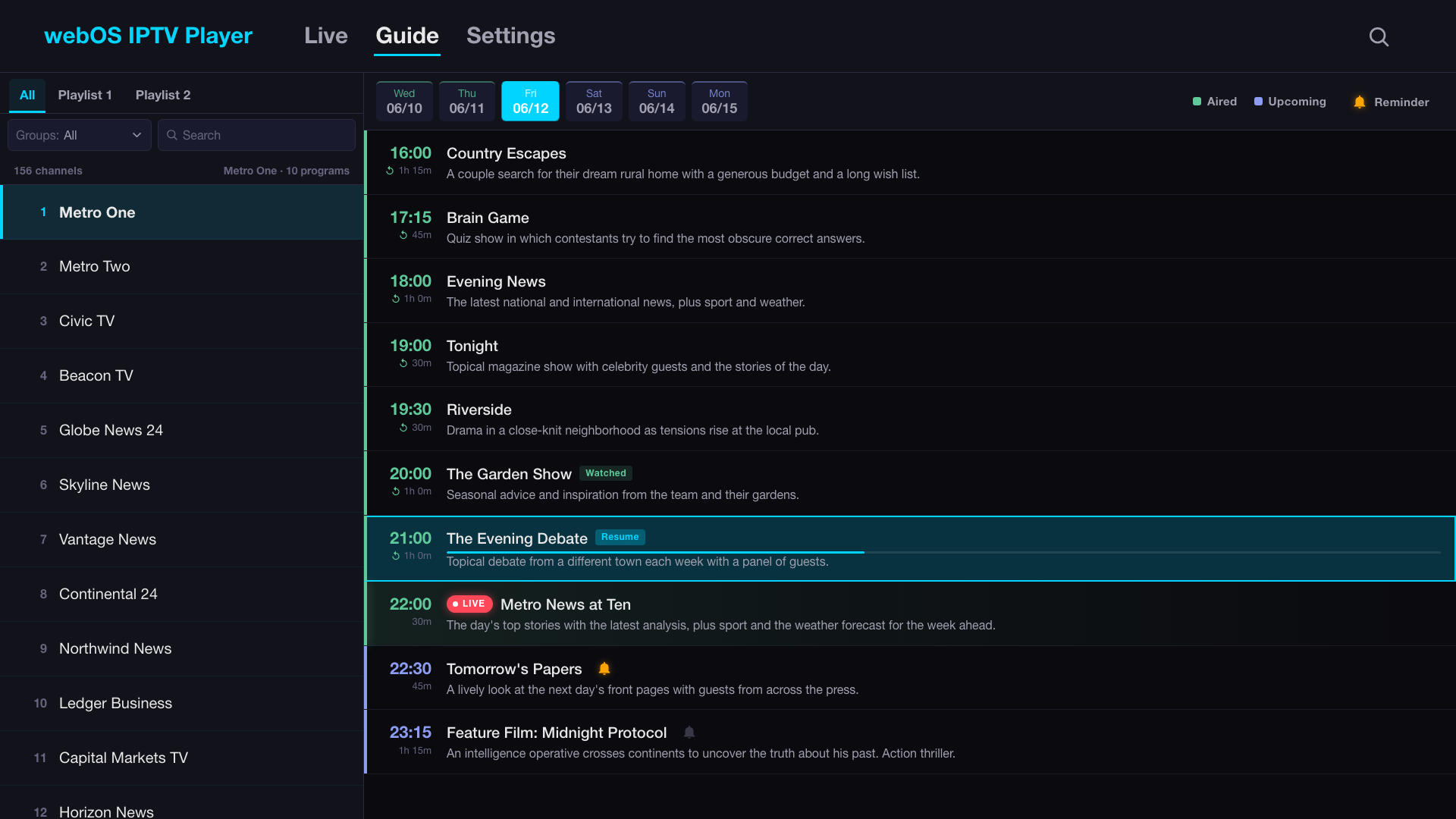 |
| Catch-up resume | Channel info |
|---|---|
 |
 |
| Playback overlays | Subtitles |
|---|---|
 |
 |
| Subtitle search | Movies |
|---|---|
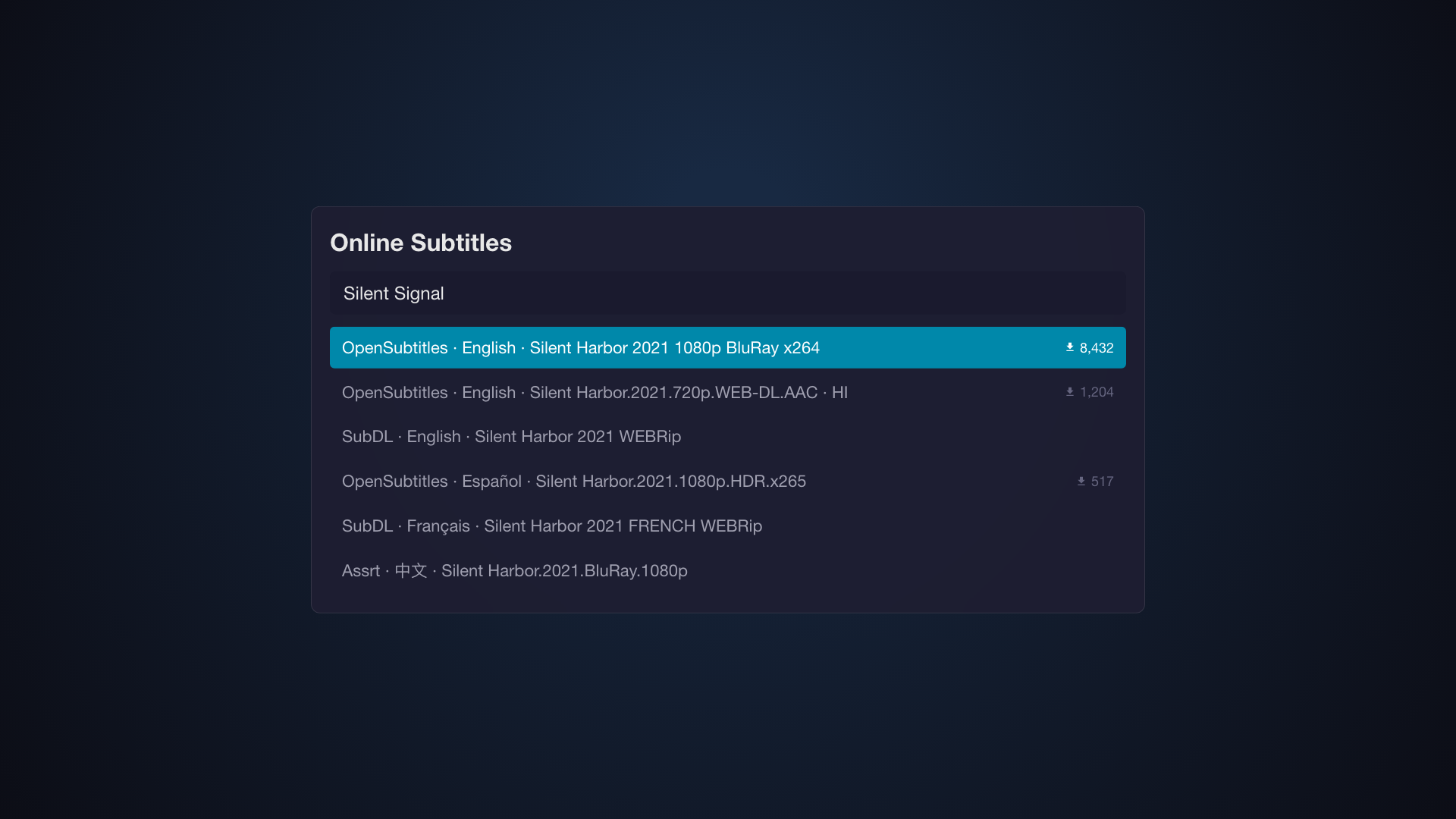 |
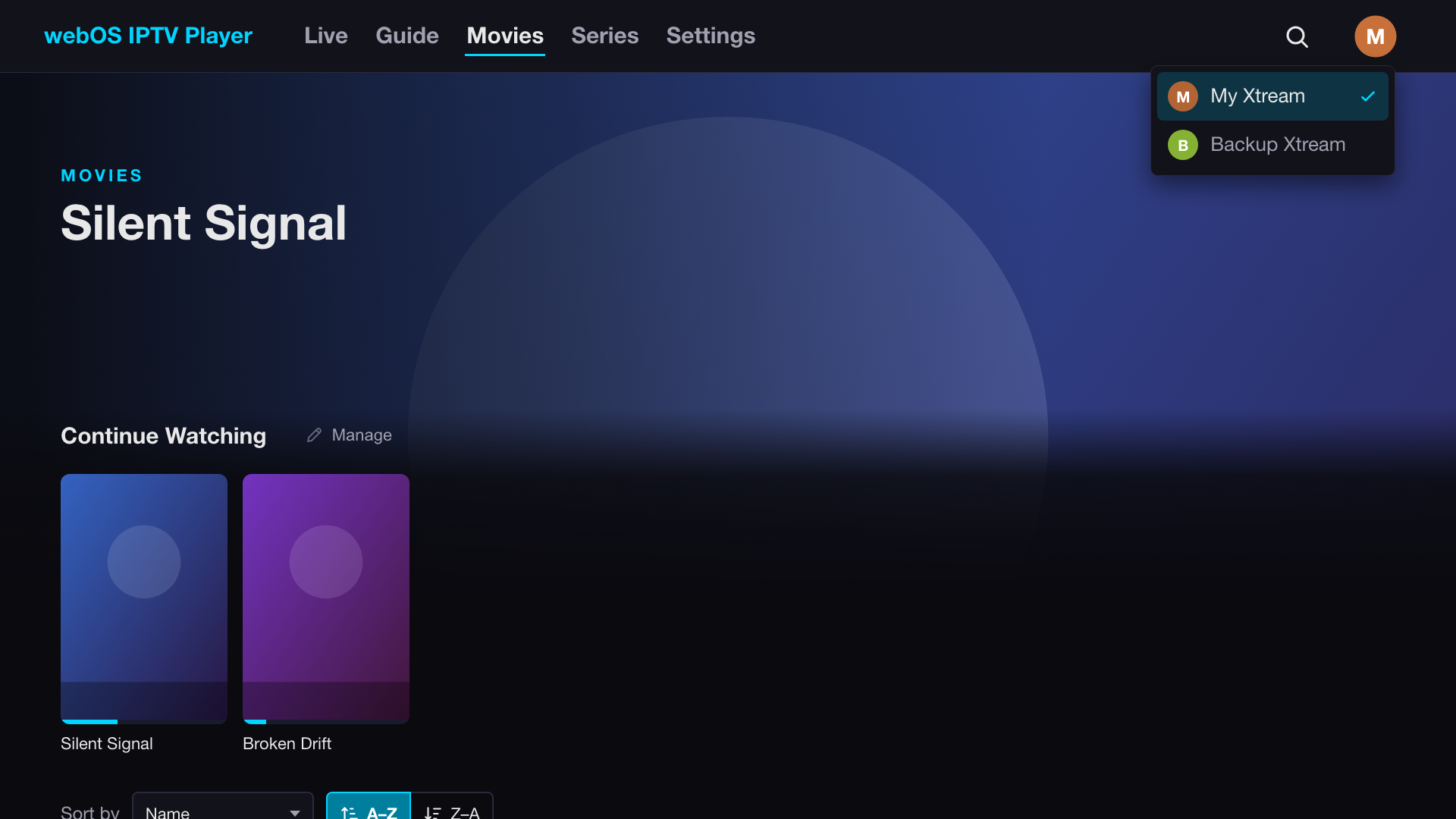 |
| Movie detail | Series detail |
|---|---|
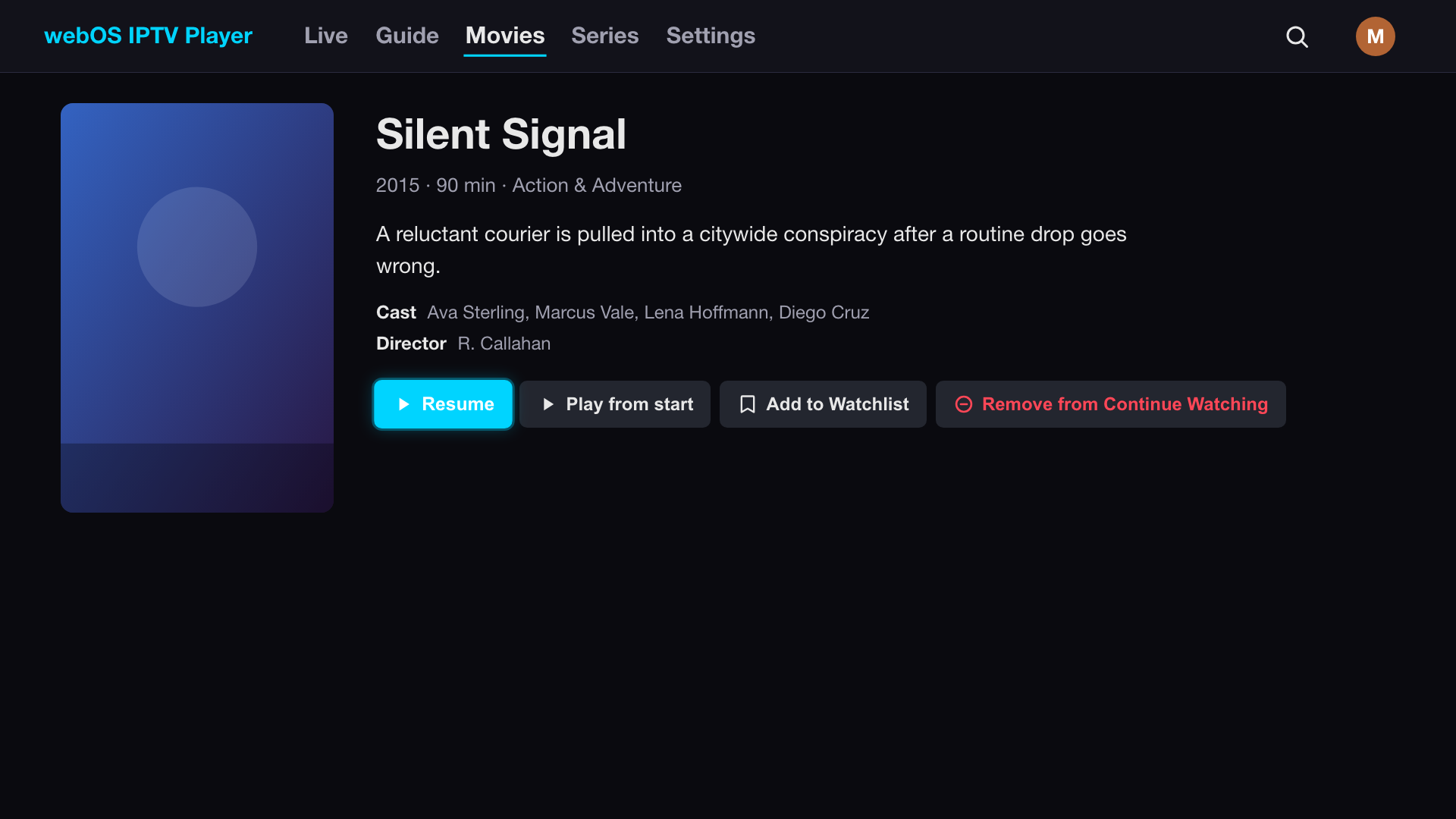 |
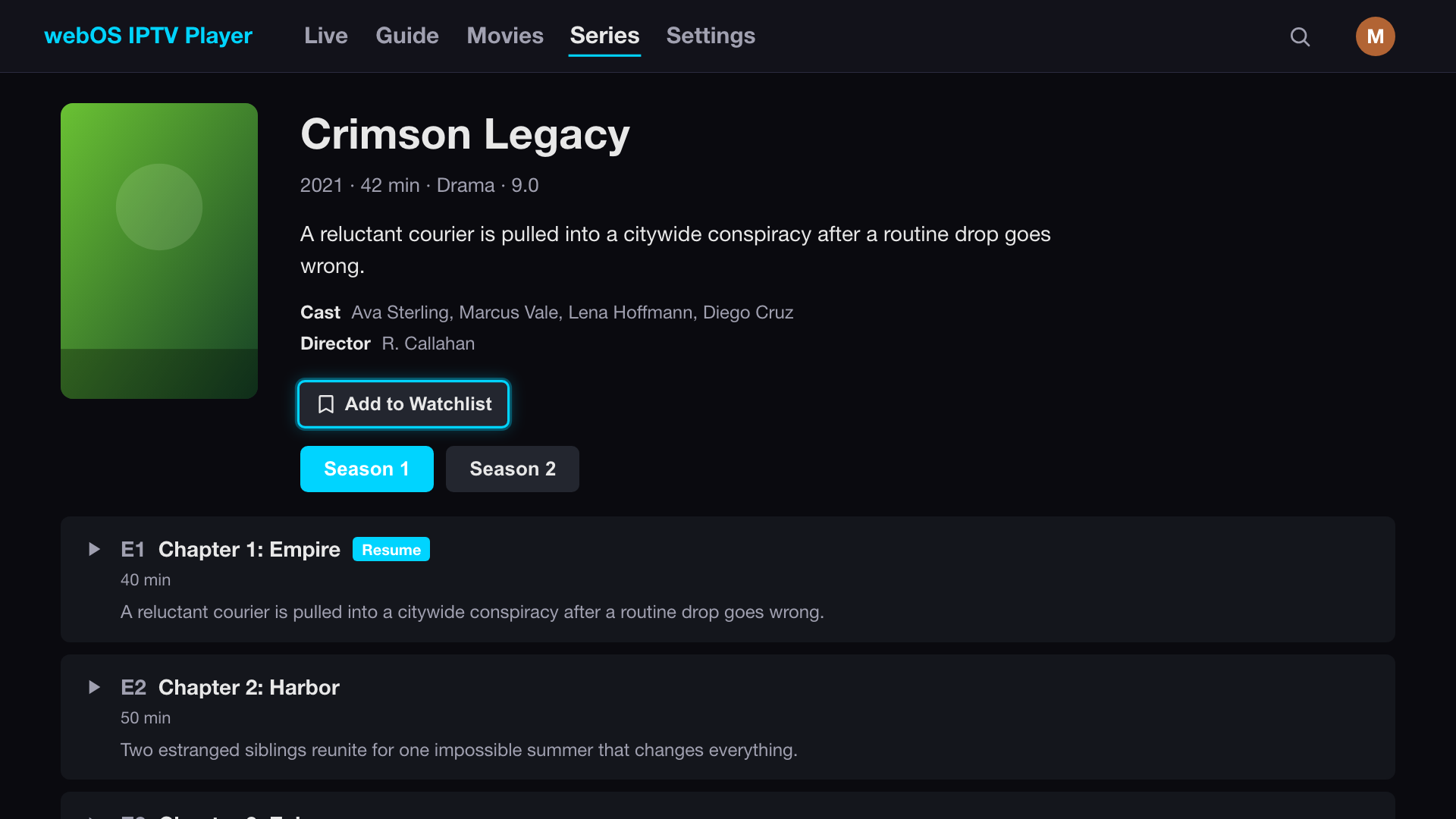 |
| Search | Settings |
|---|---|
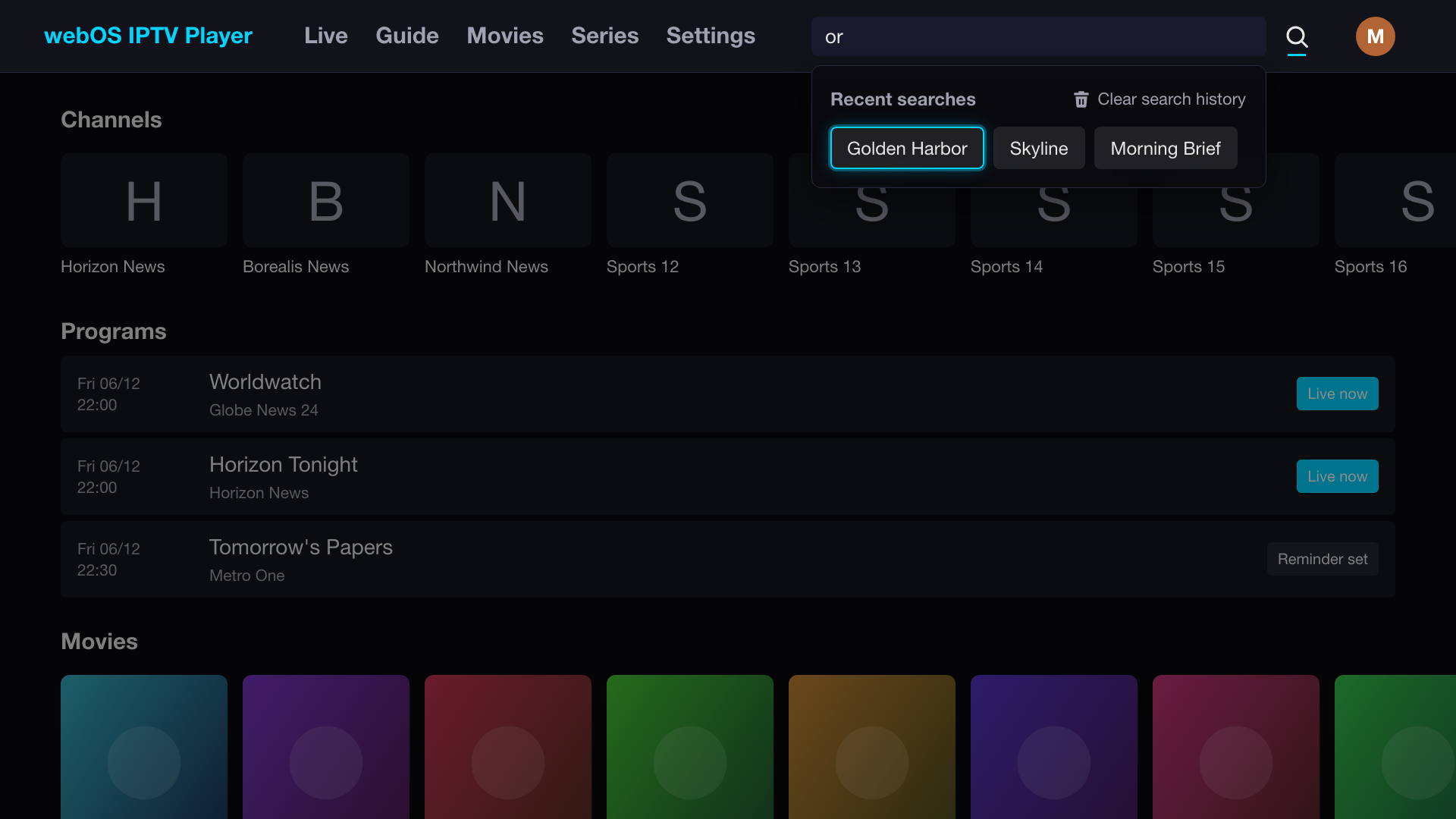 |
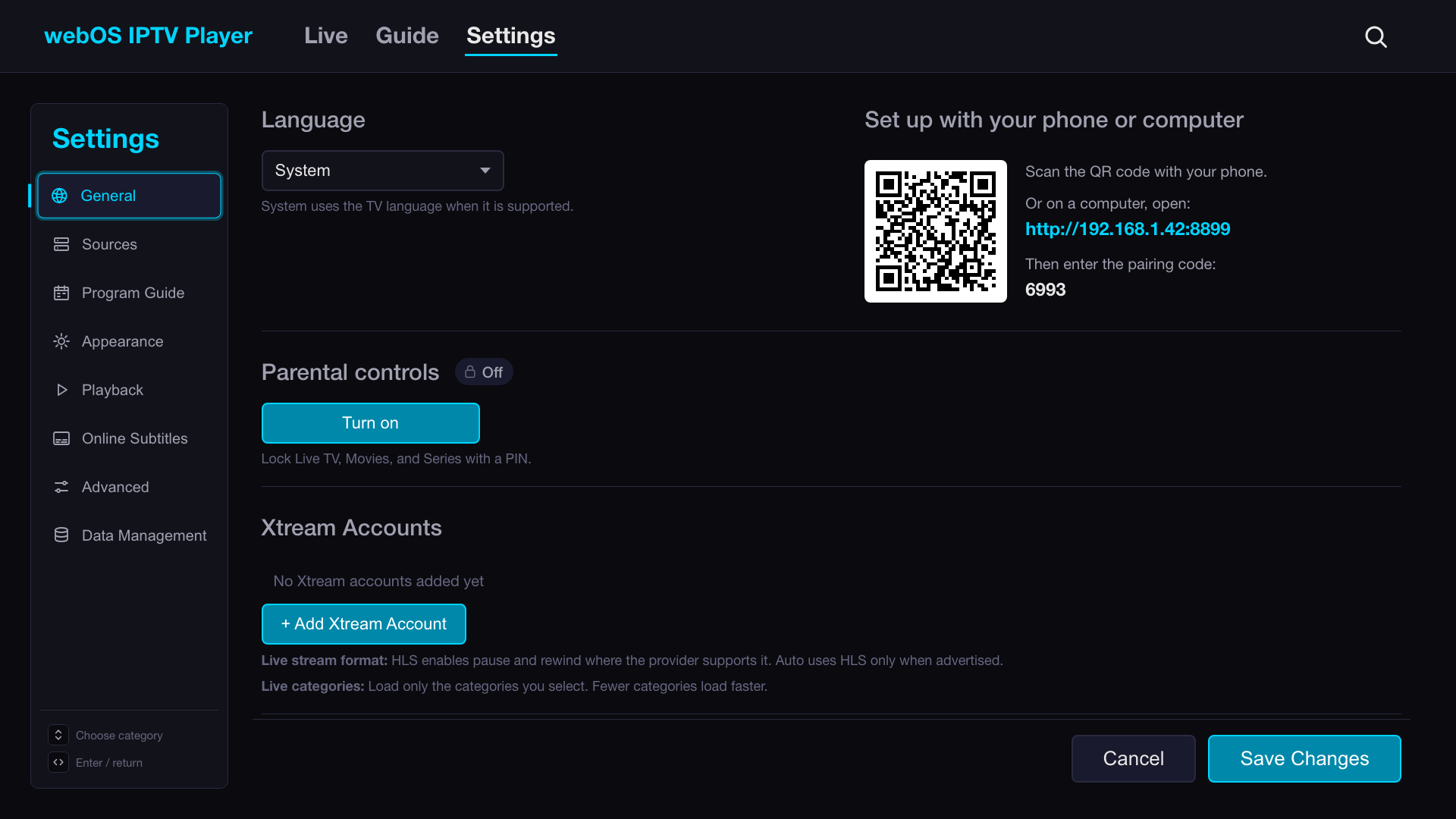 |
| Theme picker | Reminder manager |
|---|---|
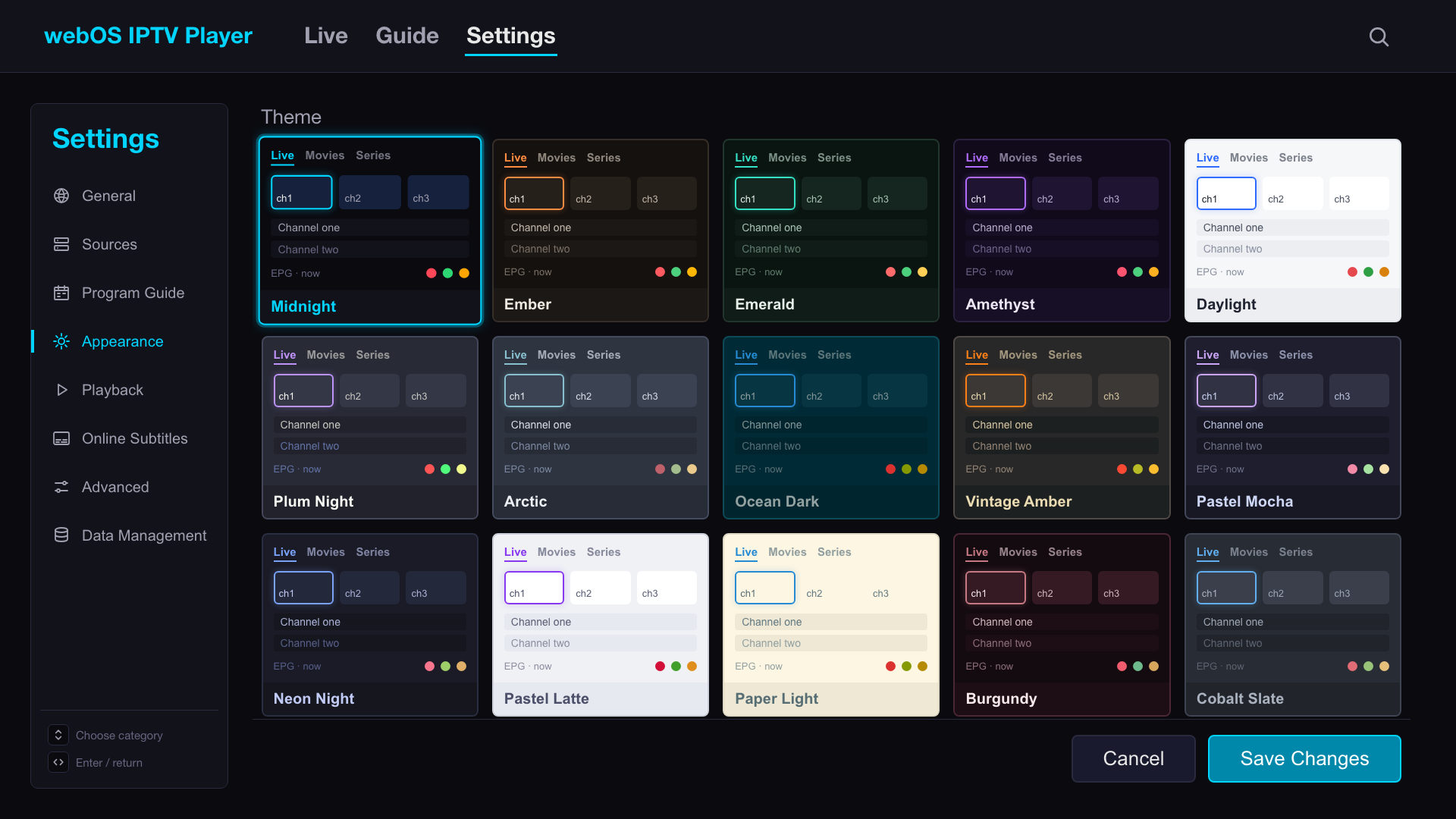 |
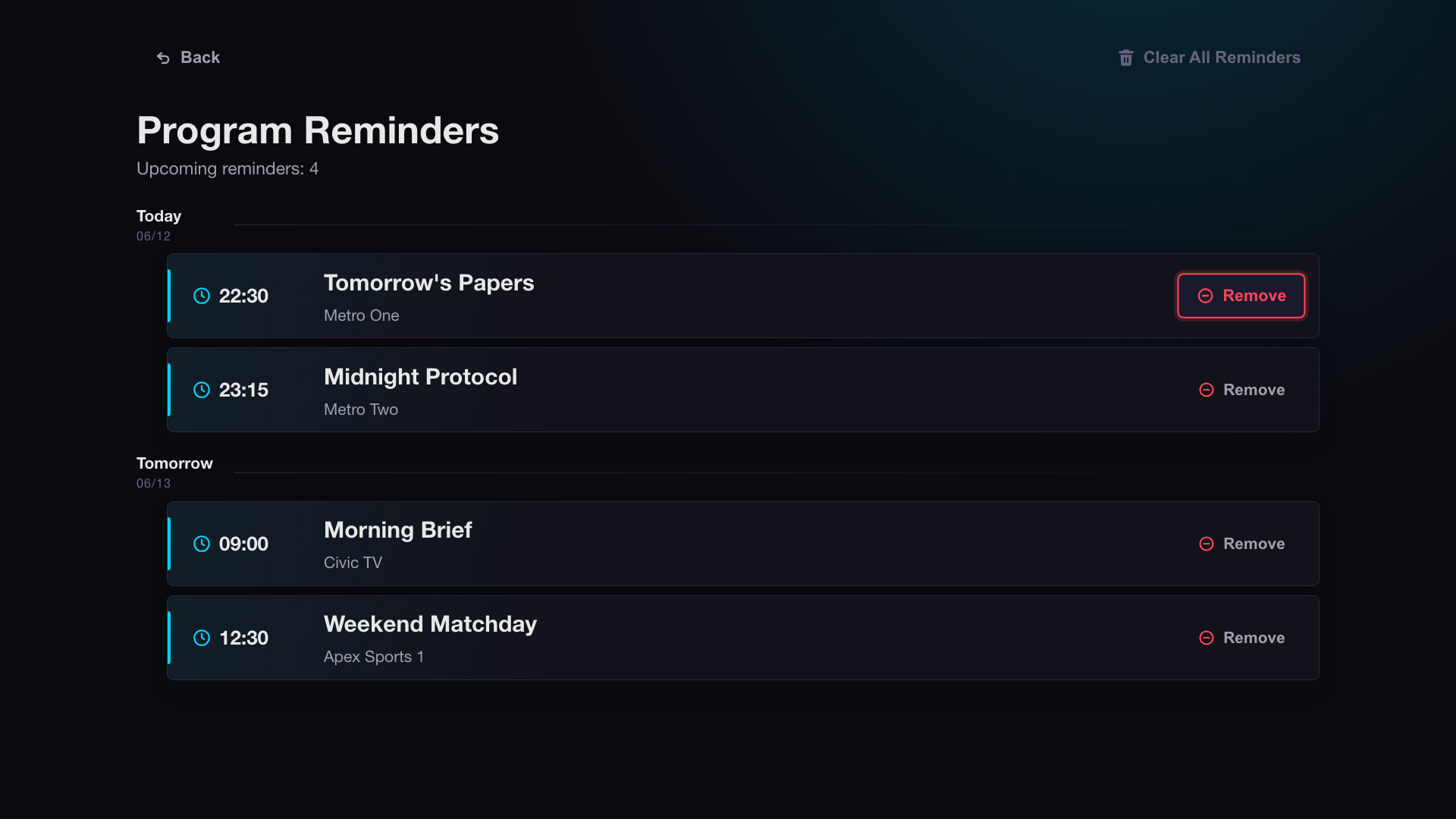 |
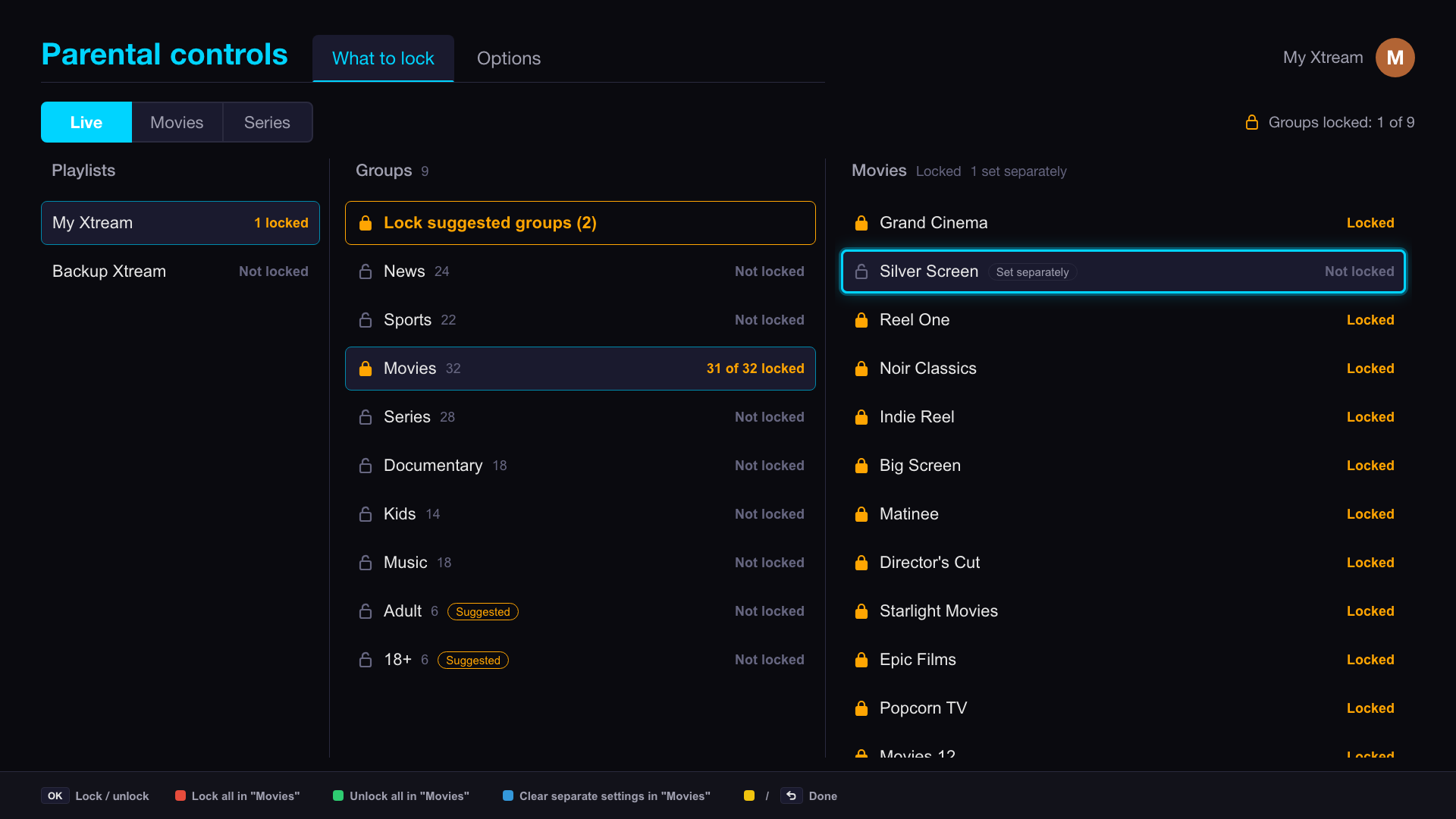
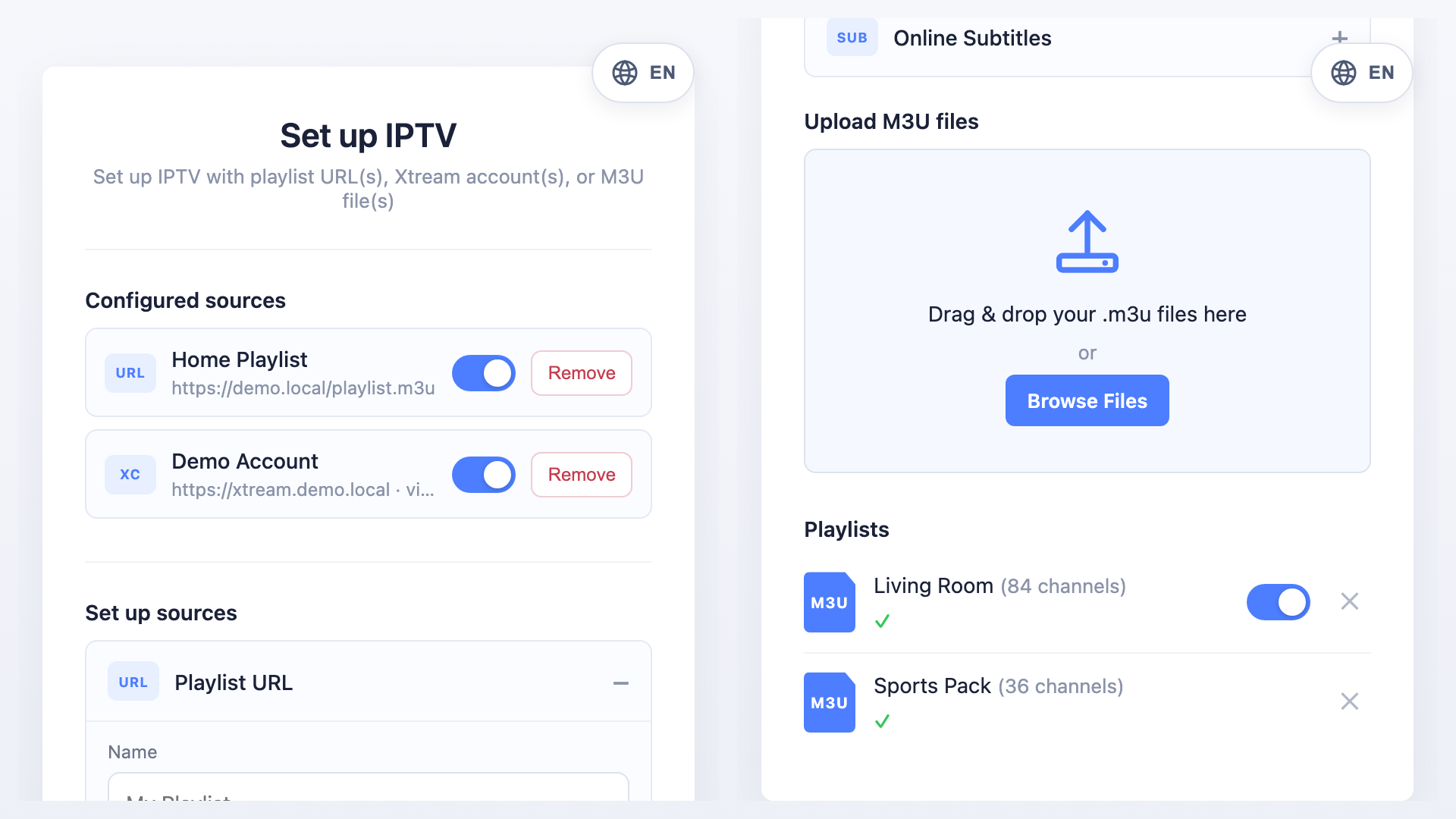
| Parental controls | LAN setup |
|---|---|
 |
 |
Features
Playlists & accounts
- M3U playlists — load multiple M3U/M3U8 lists, auto-deduplicated, and temporarily disable a source without deleting its setup
- Xtream Codes accounts — add or temporarily disable accounts, or switch between accounts from the top-bar avatar; playlists and EPG data are derived from their credentials
- LAN setup — configure sources and online subtitle settings or upload
.m3ufiles from a phone on the same network by scanning a QR code (LAN service)
Live TV & on-demand
- Program guide (EPG) — three-pane guide with an auto-derived date range, per-source time correction, and caching for instant reopen
- Channel health — check live streams and mark them as healthy, suspect, or unavailable
- Reminders — flag an upcoming program and get notified at air time, even with the app closed, to tune straight in
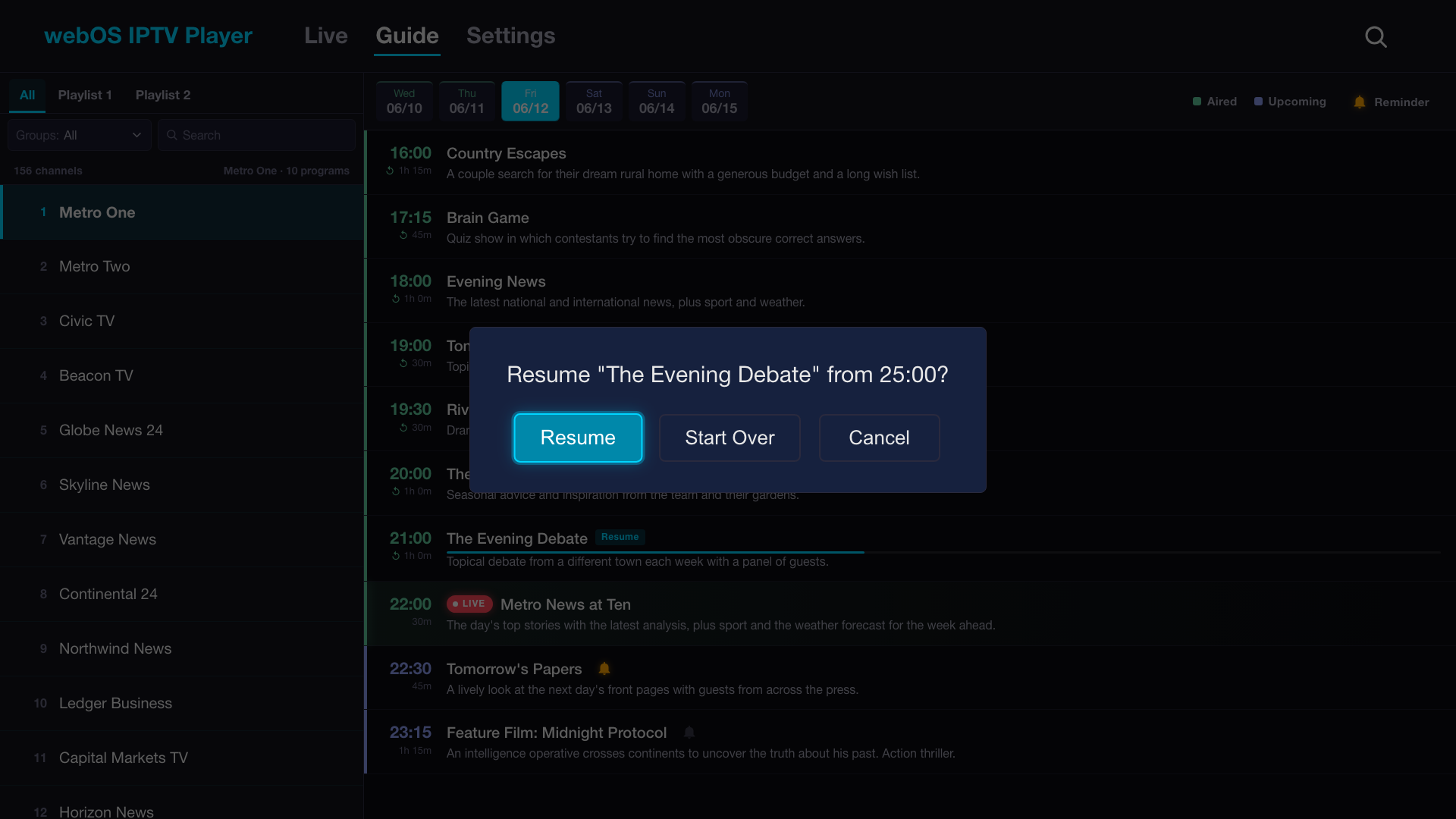
- Recently Watched — return to recent live channels or resume partially watched catch-up programs
- Live preview — keep live playback beside the channel list while browsing, with program info and quick controls
- Movies & Series — browse an Xtream account's VOD catalogs, with Continue Watching and account-scoped Watchlist rails
- Catalog sorting — sort Movies and Series by name, date added, rating, or year in either direction; each section remembers its choice
- Continue Watching & Watchlist management — remove individual titles, clear a whole list, or clear a movie's saved progress from its details page
- Automatic VOD queues — continue through series episodes or remaining Watchlist movies, removing completed titles from the Watchlist
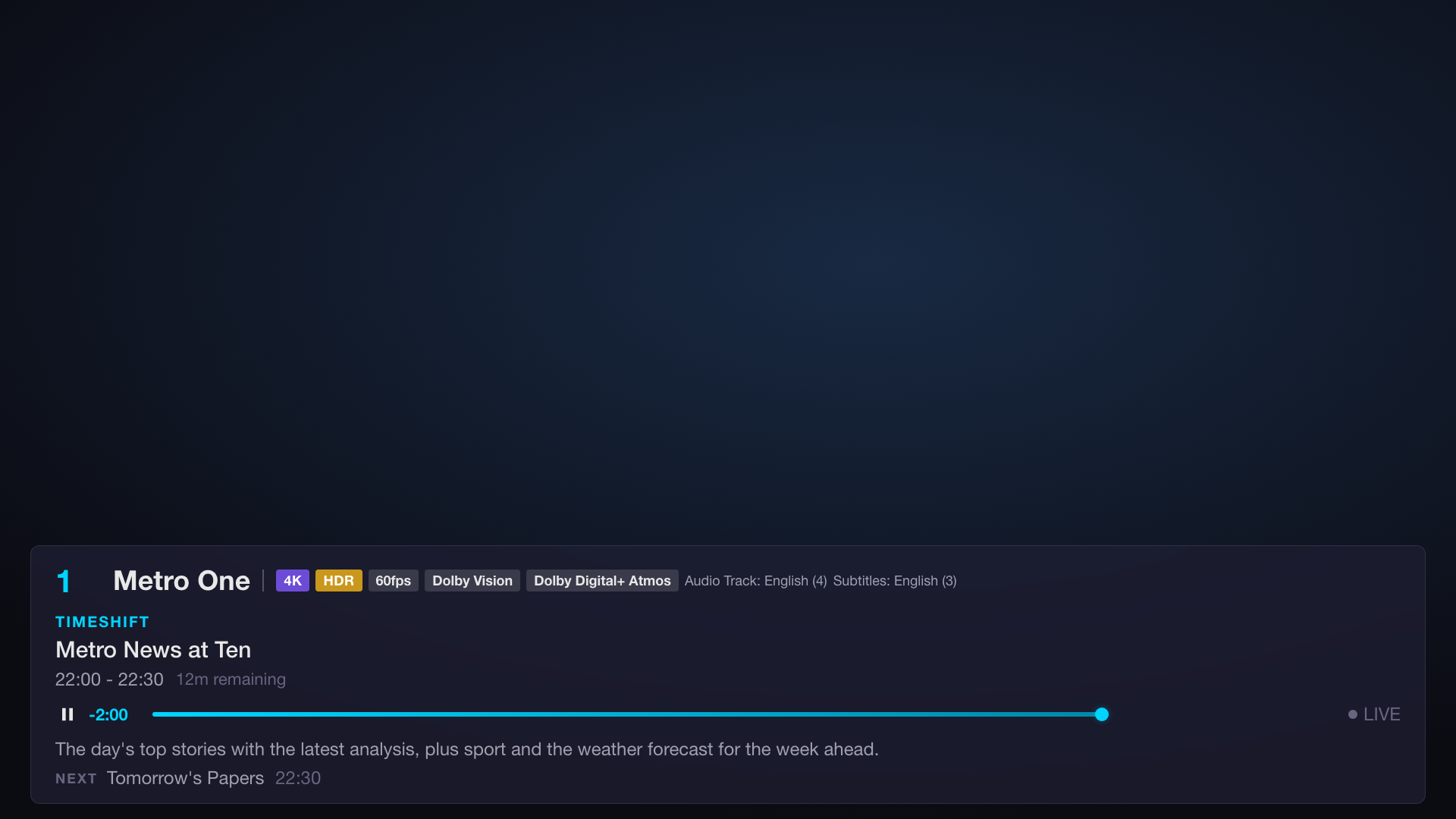
- Catch-up & Live DVR — replay past programs, and pause / rewind / return to the live edge on live streams
- Parental controls — lock Live TV groups, movie and series categories, or individual titles with a PIN, with adult groups suggested for locking; locked content can stay listed with a lock or be hidden, and you choose when the PIN is asked again
Playback
- Native HDR & Dolby passthrough — the stream goes straight to the TV's decoder, so HDR10, HLG, Dolby Vision®, and Dolby Atmos® pass through untouched — Why native instead of hls.js? See the on-device comparison
- MPEG-DASH playback — play clear and PlayReady
.mpdchannels through the native webOS pipeline, or Widevine/ClearKey through an on-demand Shaka MSE/EME path, with MPD track metadata, live DVR, and subtitle support (details) - Native PlayReady DRM — play protected MPEG-DASH channels on compatible webOS TVs through LG's DRM service and native hardware media pipeline, with license settings supplied by Kodi-style M3U properties (details)
- Widevine / ClearKey DRM — load Shaka DASH-only on demand, with Kodi-style license URLs and request headers or validated inline ClearKey keys (details)
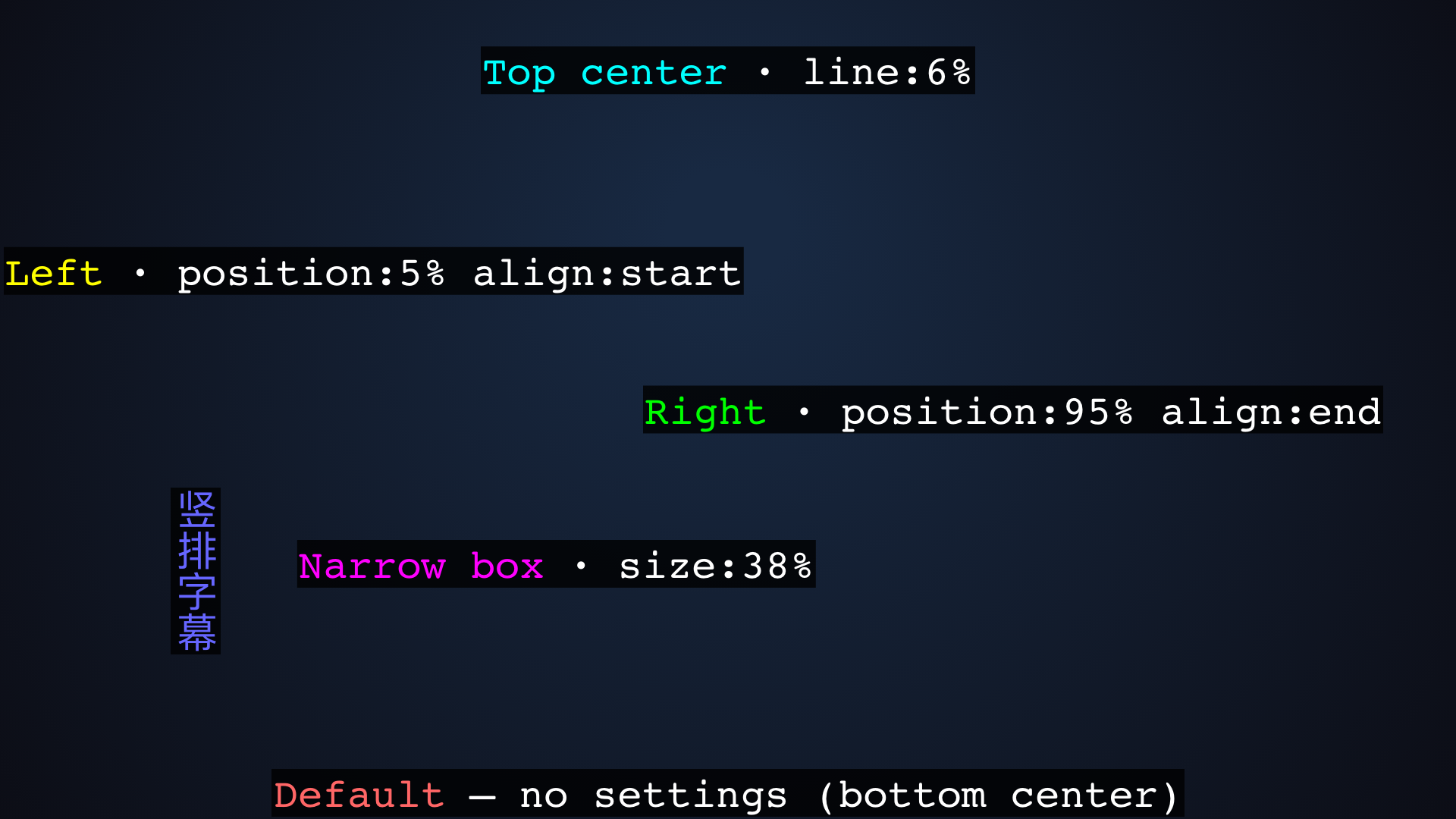
- Audio & subtitle tracks — pick from the player menu, remembered per channel or VOD item; subtitles cover in-manifest WebVTT and CEA-608/708 (live), in-container / sidecar SRT/WebVTT/ASS (VOD), and online search (SubDL, OpenSubtitles, and Assrt) with a manual title box; online search remains available when bundled tracks exist, and subtitle timing can be adjusted live
- Playback speed — choose 0.5×–2× for movies and episodes in file formats such as MP4 and MKV; live TV, catch-up, and HLS/DASH streams play at normal speed because the webOS native pipeline ignores rate changes for them
- On-screen display — program title, progress, and a live stream-info readout (resolution, HDR, frame rate, codec, audio channels)
- Automatic playback recovery — detect streams that fail to start or stall, reload transient failures, and advance to the next live channel when recovery is exhausted
- Resync A/V (🔄) — one tap on the playback bar re-locks audio and video that drift apart during a long catch-up or on-demand stream
Navigation
- Search — across channels, EPG programs, movies, and series, with direct live, catch-up, and reminder actions; recent searches drop down under the search box for one-press repeat searches; the search index is prebuilt in the background and cached, so Search is ready almost instantly
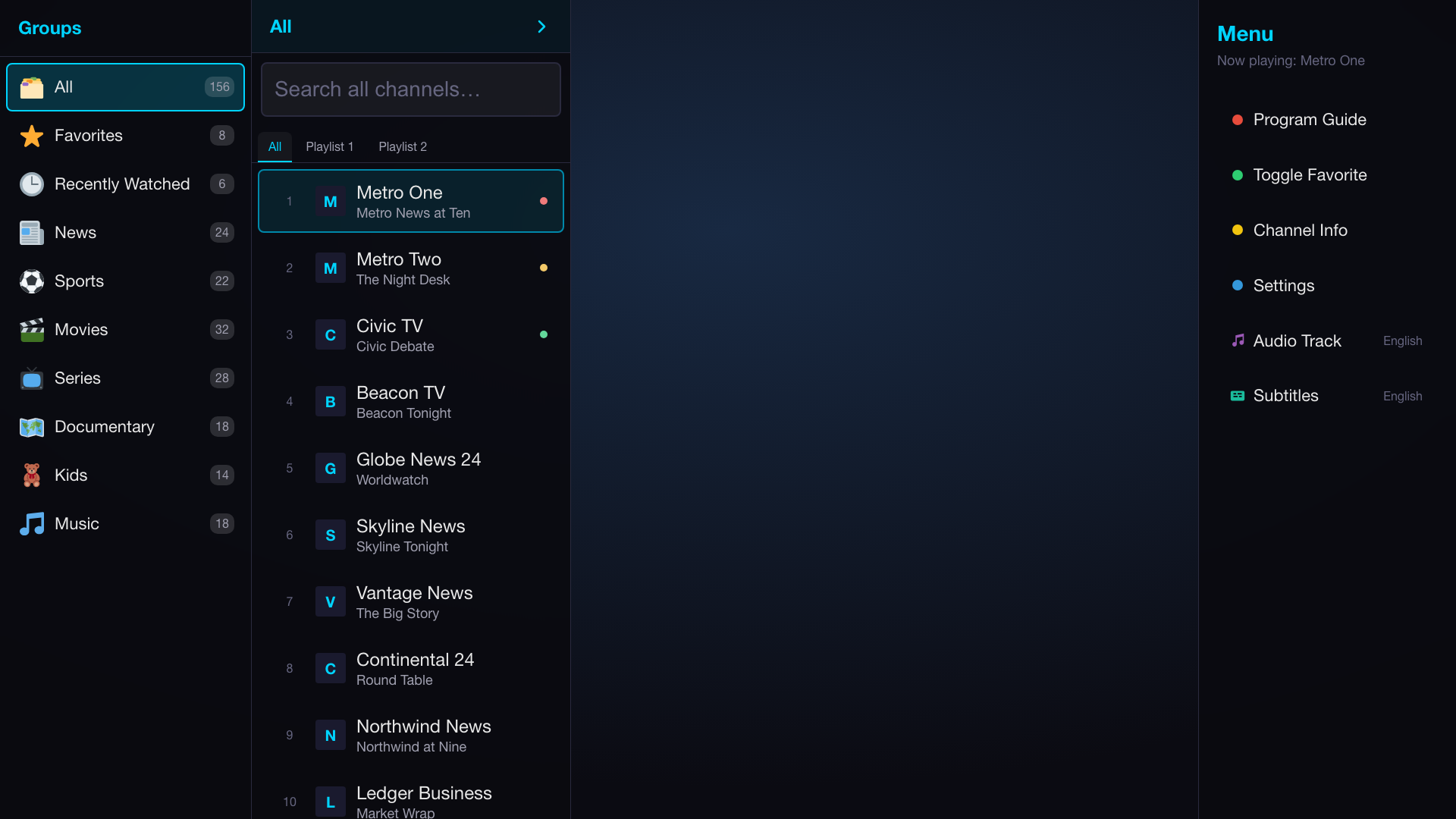
- Channel sidebar — switch channels over the video with current-program info, organized by group
- Channel customization — reorder, hide, rename, regroup, manage favorites, and correct per-channel EPG matching or timing
- Auto-play and genre group icons for faster browsing
- Number-key channel entry — press the remote's number keys to tune by channel number from the channel list or while watching, with on-screen digit feedback
- Full remote & Magic Remote — spatial D-pad navigation and pointer control across every view
- Magic Remote edge scrolling — rest the pointer near the edge of a catalog or search rail, tab row, or Guide date strip to scroll it, faster the longer it stays
- Color themes — choose from light and dark app-wide themes with live previews, plus Dark or Frosted player overlays; selections persist across launches
- Adjustable text size — scale text from 80%–150% without resizing controls
- Animation mode — Essential turns off costly motion on older TVs, Reduced keeps visual effects but scrolls instantly, and Full smooth-scrolls single navigation steps
- Multilingual interface — available in English, Deutsch, Español, Français, Italiano, Polski, Português (Brasil), Русский, Türkçe, Українська, and 简体中文; follows the TV language by default or can be selected explicitly in Settings
Development
- Desktop preview — browser-based playback via HLS.js, mpegts.js, and Shaka
Unsupported features and limitations
Some features are unavailable because of webOS platform limits or design choices. See the full list.
Supported webOS versions
The app runs on webOS 4.0 (2018) and newer. Its baseline is the Chromium 53
engine on webOS 4; every later release ships a newer Chromium, so the app is
forward-compatible. Features only newer engines support natively (flex gap,
backdrop-filter, …) get feature-detected fallbacks on the older ones.
| webOS version | Released | Chromium engine | Bundled service Node.js | Supported |
|---|---|---|---|---|
| webOS 4.x | 2018–2019 | 53 | 0.12.2 | ✅ (minimum) |
| webOS 5.0 | 2020 | 68 | 8.12.0 | ✅ |
| webOS 6.0 | 2021 | 79 | 8.12.0 | ✅ |
| webOS 22 | 2022 | 87 | 12.21.0 | ✅ |
| webOS 23 | 2023 | 94 | 12.22.2 | ✅ |
| webOS 24 | 2024 | 108 | 16.19.1 | ✅ |
| webOS 25 | 2025 | 120 | 16.20.2 | ✅ |
| webOS 26 | 2026 | 132 | 20.12.2 | ✅ |
webOS 3.x and older (Chromium 38 and earlier) are not supported.
Prerequisites
Command-line installation and local builds require Node.js (v22+) and the webOS CLI tools:
npm install -g @webos-tools/cliAdding the repository directly in Homebrew Channel does not require these tools.
Install on your TV
Homebrew Channel
Install the community webOS Homebrew Channel, then open Settings → Add repository and enter:
https://raw.githubusercontent.com/lennylxx/webos-iptv-player/main/homebrew-repository.json
To prefill the repository URL from a computer configured with ares-cli, run:
ares-launch --device tv org.webosbrew.hbchannel -p '{"launchMode":"addRepository","url":"https://raw.githubusercontent.com/lennylxx/webos-iptv-player/main/homebrew-repository.json"}'Confirm Add repository on the TV. Homebrew Channel can then install the app and detect updates from later GitHub releases.
Developer Mode
-
Download the app. On your computer, open the Releases page and download the latest
.ipkfile. -
Turn on Developer Mode on the TV.
- Create a free account at the LG webOS Developer site.
- On the TV, open the LG Content Store, search for Developer Mode, then install and open it.
- Sign in with your LG developer account and switch Dev Mode Status to ON. The TV restarts. Note the IP address and passphrase the app shows.
-
Register your TV. Add it as a device named
tv(replace the IP with your TV's):ares-setup-device --add tv -i "username=prisoner" -i "host=127.0.0.1" -i "port=9922"
Then fetch the device key, entering the passphrase from the Developer Mode app when prompted:
ares-novacom --device tv --getkey
-
Install the app.
ares-install --device tv ./com.lennylxx.iptv_<version>_all.ipk
Development
Setup
npm installBuild
./build.shBuild & Install to TV
./build.sh --install [device-name]If no device name is given, the default device from ares-setup-device is used.
Debug on a TV
On Windows, use WSL 2; native Windows is not supported.
scripts/tv.sh reads the connection details for the default
ares-setup-device device, so keys and passphrases do not need to be copied
into commands.
scripts/tv.sh logs --app com.lennylxx.iptv       # Stream the app's DevTools console
scripts/tv.sh eval 'document.visibilityState'    # Evaluate JavaScript in the app page
scripts/tv.sh perf --duration 30                 # Sample CPU, heap, DOM, and layout
scripts/tv.sh diag                               # Capture a redacted diagnostics report
scripts/tv.sh capt screenshot screen.png         # Capture video and app OSD
scripts/tv.sh capt record screen.mp4             # Record 10 seconds, target 5 fps, no audio
scripts/tv.sh input key down ok red              # Press remote keys
scripts/tv.sh input click 700 450                # Move the Magic Remote pointer and click
scripts/tv.sh input wheel 3                      # Scroll the wheel 3 notches down at the pointer
scripts/tv.sh input key power                    # Turn the TV off
scripts/tv.sh input wake                         # Turn the TV on (Wake-on-LAN)
scripts/tv.sh run 'uname -a'                     # Run a TV command over SSH
scripts/tv.sh push ./file.txt /tmp/file.txt      # Copy a local file to the TV
scripts/tv.sh pull /tmp/file.txt ./file.txt      # Copy a TV file to this computer
scripts/tv.sh shell                              # Open an interactive SSH session
scripts/tv.sh reboot                             # Reboot the TV through Luna
TV_DEVICE=tv2 scripts/tv.sh logs                 # Select a non-default configured TV
Run scripts/tv.sh logs --help (or eval, perf, diag, capt,
input) for options.
Preview in Browser
npm run previewOpens at http://localhost:3000. Video playback uses HLS.js, mpegts.js, and Shaka on desktop.
Settings
Open with the Blue key or the Settings tab in the top bar. Sections:
- Language — follow the TV's system language when supported, or choose a language explicitly.
- Device Setup — scan the QR code to configure the app from a phone, or open the shown URL on a computer and enter the pairing code.
- Parental controls — set a PIN; lock Live TV groups, movie and series categories, or individual titles; show locked content with a lock or hide it; and choose when the PIN is asked again.
- Xtream Accounts — add, edit, remove, or temporarily disable accounts; check credentials, connection usage, and expiry; choose TS, HLS, or Auto for live streams; and pick the Live categories to load, optionally showing new ones automatically. The playlist and EPG are derived from the account credentials on Save.
- Playlists — add, edit, remove, or temporarily disable M3U URLs. Re-applied on Save.
- Upload Playlists — lists playlists uploaded through Device Setup, with controls to temporarily disable or remove each upload. New uploads appear automatically through Luna push.
- Channels — check live-stream health; reorder, hide, rename, regroup, manually map entries to XMLTV channels, or correct one channel's EPG time; show hidden channels or reset customizations.
- Manual XMLTV sources — add several program guide URLs, prioritized from top to bottom, and apply each to all playlists or to specific ones. Guide URLs are also discovered automatically from
url-tvg,x-tvg-url, ortvg-urlin M3U playlists. - EPG time zone — show guide times in the TV's Device time zone or the guide Feed time zone.
- EPG time correction — adjust each source independently in 15-minute steps.
- Program reminders — open the date-grouped Reminder Manager to review or remove upcoming reminders.
- Appearance — preview an app-wide color theme, choose Dark or Frosted player overlays, and adjust text from 80% to 150%.
- Playback — toggle auto-play and Live preview, and choose whether Channel Up/Down cycles the global list or stays within the active group, Favorites, or playlist.
- Online Subtitles — choose a preferred subtitle language and configure SubDL, OpenSubtitles, and Assrt credentials for online search.
- Advanced — customize advanced interface, playback, and background refresh behavior.
- Data Management — refresh data, clear caches or viewing lists, or reset the app.
- Save Changes applies preferences and reloads playlist and guide data when their sources change. Cancel discards edits.
Remote Control Mapping
| Key | Player | Channel List | EPG |
|---|---|---|---|
| Up/Down | Channel +/- | Navigate | Navigate within pane |
| Left | Open sidebar, then groups; seek −30s when available | Move toward groups | Previous pane or day |
| Right | Open menu; seek +30s when available | Move toward channels | Next pane, day, or Reminder Manager |
| OK/Enter | Toggle OSD; pause/resume; activate overlay | Select channel | Play channel/program or open Reminder Manager |
| Back | Back out of sidebar/menu; stop & return | Exit app (press twice) | Close guide |
| Red | Open EPG | Open EPG | — |
| Blue | Open settings | Open settings | Open settings |
| Yellow | Show OSD | Edit channel list | Search guide |
| Green | Toggle favorite (in sidebar/menu) | Toggle favorite (on focused channel) | Jump to today |
| Play/Pause | Pause/resume playback | — | — |
| Rewind/Fast-Forward | To oldest / Go to live (live DVR) | — | — |
| Ch +/- | Channel +/- | Previous/next channel | Jump 10 channels/programs |
| 0-9 | Direct channel entry | Direct channel entry | — |
Movies, Series, Search, Settings, and Reminder Manager use standard D-pad navigation; Back returns to the previous view.
Docs
Implementation deep-dives for contributors — the webOS-specific behavior behind some of the features above:
docs/native-vs-hls.js.md— why on-device playback uses the native<video>pipeline (HDR & Dolby passthrough) instead of hls.jsdocs/audio-track-selection.md— how audio-track switching works on the native webOS playerdocs/hls-subtitles.md— how live HLS subtitles are handled on webOS (in-manifest types and their render paths)docs/mpeg-dash.md— how DASH detection, native playback, subtitles, and live DVR workdocs/vod-subtitles.md— how VOD (Xtream movies & episodes) subtitles work: in-container tracks plus sidecar SRT/WebVTT/ASS, and online subtitle search (SubDL, OpenSubtitles, Assrt)docs/storage-and-data.md— what the app stores, where it lives, and how user data is separated from disposable cachesdocs/lan-service.md— phone setup and M3U uploads over the bundled LAN servicedocs/unsupported-features.md— features that webOS does not allow or that are intentionally out of scope, with alternatives
License and third-party notices
This project is licensed under Apache-2.0. Third-party software and
artwork retain their own licenses; see the attribution inventory.
Every build includes LICENSE, THIRD_PARTY_NOTICES.txt, and a licenses/
directory in dist/, so the notices accompany the packaged app. This inventory
covers the production IPK, not the additional playback libraries used only for
local desktop preview.